speed up laptop
Is your laptop running slower than it used to? The good news is that you can speed up laptop performance without spending money on expensive hardware upgrades. Most slowdowns stem from software bloat, fragmented storage, or resource-hogging background processes that accumulate over time.
This guide breaks down the most effective techniques to restore your machine’s responsiveness. Whether you’re dealing with boot delays, application lag, or system freezes, these methods address the root causes rather than offering temporary fixes.
Speed Up Laptop – Why Laptops Slow Down Over Time
Understanding the mechanics behind performance degradation helps you target the right solutions. Every program you install leaves registry entries, cached files, and startup triggers that consume memory and processor cycles.
Thermal throttling compounds the issue. When cooling systems accumulate dust, processors automatically reduce clock speeds to prevent overheating. According to industry analysis from major hardware manufacturers, thermal issues account for nearly 40% of reported performance complaints in laptops over two years old.
Storage fragmentation creates another bottleneck. Traditional hard disk drives physically scatter file segments across platters, forcing read heads to jump between locations. This mechanical process adds measurable latency to every file operation.
Core Strategies to Speed Up Laptop Systems
Speed Up Laptop – Disable Unnecessary Startup Programs
Startup programs drain resources before you even open an application. Task Manager reveals which processes launch automatically during boot sequences.
Press Ctrl+Shift+Esc to open Task Manager, navigate to the Startup tab, and disable non-essential programs. Communication tools, cloud sync clients, and updater services frequently run unnecessarily at startup. Disabling them can reduce boot times by 30-50 seconds on average systems.
Speed Up Laptop – Upgrade to Solid State Storage
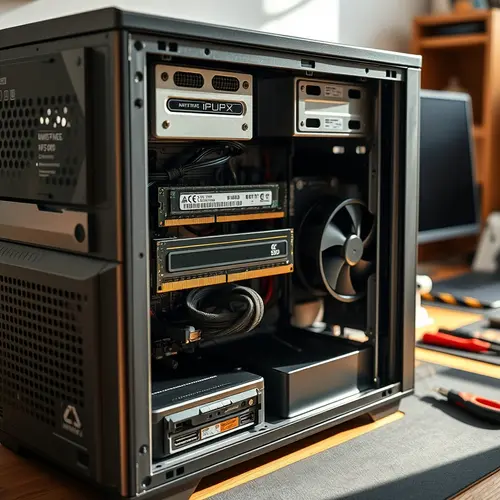
Replacing mechanical hard drives with SSDs delivers the single largest performance gain for aging laptops. SSDs eliminate seek times and provide read speeds 5-10 times faster than traditional drives.
Data from storage benchmarking organizations shows that systems with SSDs experience 70% faster boot times and 3-4x improvements in application launch speeds. Installation takes 20-30 minutes for most laptop models and requires only basic tools.
Speed Up Laptop – Increase RAM Capacity
Insufficient memory forces systems to use slower disk-based paging files. When physical RAM fills up, the operating system swaps data to storage, creating severe performance penalties.
Check your current usage in Task Manager under the Performance tab. If memory consistently exceeds 80% during normal workloads, upgrading RAM prevents constant disk swapping. Most productivity users benefit from 16GB, while 8GB suffices for basic web browsing and document editing.
| Optimization Method | Performance Gain | Implementation Time | Cost |
|---|---|---|---|
| Disable Startup Programs | Moderate (15-30%) | 5 minutes | Free |
| SSD Upgrade | High (70-200%) | 30 minutes | $50-150 |
| RAM Expansion | High (40-100%) | 15 minutes | $30-100 |
| Disk Cleanup | Low (5-15%) | 10 minutes | Free |
| Malware Removal | Variable (0-300%) | 30-60 minutes | Free |
Speed Up Laptop – Remove Bloatware and Unused Applications
Pre-installed manufacturer software consumes disk space and system resources without providing value. These trial versions and utility programs run background services that fragment attention across multiple processes.
Navigate to Settings > Apps > Installed apps to review everything on your system. Remove applications you haven’t used in three months. Pay special attention to browser toolbars, system optimization suites, and bundled media players that duplicate native functionality.
Advanced Techniques to Speed Up Laptop Responsiveness
Speed Up Laptop – Optimize Power Settings
Balanced power plans prioritize energy efficiency over performance. Switching to High Performance mode removes CPU throttling and allows maximum processor speeds during demanding tasks.
Access power options through Control Panel or by searching “power plan” in the Start menu. Note that this adjustment reduces battery life by 10-20% but provides noticeably smoother multitasking and application responsiveness.
Speed Up Laptop – Clean Dust from Cooling Systems
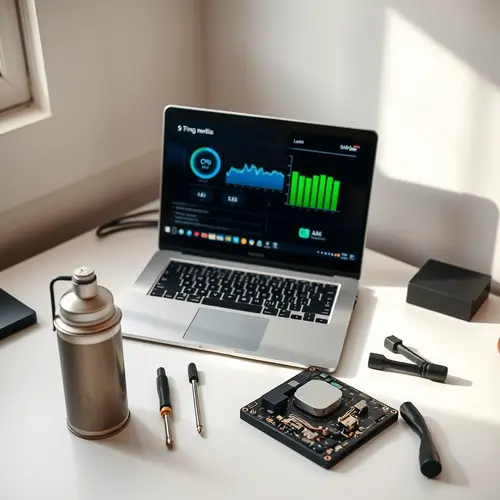
Thermal accumulation forces processors to reduce speeds through throttling mechanisms. Opening the bottom panel and using compressed air to clear intake vents and fan blades restores airflow.
Perform this maintenance every 6-12 months depending on your environment. Systems in dusty spaces or near floor level accumulate debris faster. Proper cooling allows CPUs to maintain boost frequencies longer, directly improving execution speeds for processor-intensive tasks.
Speed Up Laptop – Defragment Hard Drives
File fragmentation affects mechanical drives but not SSDs. If you’re still using an HDD, the built-in defragmentation utility reorganizes scattered file segments into contiguous blocks.
Search “defragment” in the Start menu and run the Optimize Drives tool. Schedule automatic optimization weekly to maintain peak read/write performance. Skip this entirely if you have an SSD—defragmentation provides no benefit and unnecessarily writes to the drive.
Software Maintenance to Speed Up Laptop Operations
Update Drivers and Firmware
Outdated drivers create compatibility issues and performance bottlenecks. Graphics drivers particularly impact system responsiveness since GPU acceleration affects interface rendering and video playback.
Visit your laptop manufacturer’s support page and download the latest chipset, graphics, and network drivers. Device Manager flags problematic hardware with yellow warning icons, indicating missing or corrupted drivers that need attention.
Scan for Malware and Adware
Malicious software consumes processor cycles for cryptocurrency mining, data collection, or botnet participation. Browser hijackers redirect searches and inject advertisements, degrading web performance.
Run Windows Defender or reputable third-party security tools to identify threats. Malwarebytes provides effective detection for adware and potentially unwanted programs that traditional antivirus misses. Quarterly scans catch infections before they significantly degrade performance.
Adjust Visual Effects
Animations and transparency effects tax graphics processors without improving functionality. Disabling these visual flourishes frees resources for actual productivity tasks.
Search “performance options” and select “Adjust the appearance and performance of Windows.” Choose “Adjust for best performance” to disable all effects, or manually deselect specific animations while keeping useful features like font smoothing.
Expert Opinion: The SSD Myth Nobody Talks About
Many users assume any SSD automatically guarantees blazing performance. The reality is more nuanced. Budget SATA SSDs with DRAM-less controllers can bottleneck under sustained write operations, creating stuttering that rivals older hard drives.
If you’re upgrading storage to speed up laptop systems, prioritize drives with dedicated DRAM cache. Models using HMB (Host Memory Buffer) technology offer acceptable performance at lower price points but still lag behind DRAM-equipped alternatives during heavy multitasking.
Check technical specifications before purchasing. The controller type matters as much as the NAND flash itself. Phison E12 and Silicon Motion SM2262 controllers provide excellent real-world responsiveness even in mid-range products.
Common Mistakes That Sabotage Performance
Registry cleaners promise optimization but rarely deliver measurable improvements. These utilities can corrupt system files when removing entries incorrectly, creating more problems than they solve.
Running multiple antivirus programs simultaneously creates resource conflicts. Real-time scanners from different vendors compete for file access, generating constant disk activity that slows every operation. Stick with Windows Defender or a single trusted third-party solution.
Overfilling storage capacity degrades performance across all drive types. SSDs particularly suffer when less than 10% free space remains, as they need empty blocks for wear leveling and garbage collection. Maintain at least 15-20% free capacity for optimal operation.
Maintenance Schedule for Sustained Performance
Preventive maintenance keeps systems running smoothly between major optimizations. Implement these practices to avoid gradual slowdowns:
- Weekly: Empty browser cache and temporary files using Disk Cleanup
- Monthly: Review installed programs and remove unused applications
- Quarterly: Scan for malware and check for driver updates
- Semi-annually: Clean dust from cooling systems and verify backup integrity
- Annually: Evaluate hardware upgrade opportunities based on usage patterns
Task Scheduler automates many of these processes. Configure disk cleanup, antivirus scans, and optimization utilities to run during off-hours when the laptop sits idle.
When Hardware Upgrades Make Sense
Software optimizations only stretch existing hardware so far. If your laptop struggles with basic tasks after implementing these strategies, component limitations may require physical upgrades.
Processors older than five generations create insurmountable bottlenecks for modern web applications. JavaScript-heavy sites and video conferencing demand multi-core performance that aging CPUs cannot deliver efficiently. In these cases, replacement makes more financial sense than incremental improvements.
Evaluate upgrade costs against new system prices. If SSD and RAM upgrades total more than 50% of a comparable new laptop’s price, replacement provides better long-term value with warranty coverage and modern efficiency standards.
The methods outlined here address the most common performance bottlenecks affecting laptop systems. Start with free software optimizations before investing in hardware upgrades. Systematic troubleshooting identifies which interventions deliver the greatest impact for your specific usage patterns. Regular maintenance prevents the gradual accumulation of issues that eventually make systems feel sluggish. By implementing these strategies, you can speed up laptop performance and extend the useful life of your existing hardware for years.
About the Author