speed up computer
If your machine takes forever to boot or lags during basic tasks, you need proven strategies to speed up computer performance without buying new hardware. Most slowdowns stem from software bloat, fragmented storage, or resource-hogging background processes—all fixable with the right approach.
This guide cuts through the noise to deliver actionable methods backed by system engineering principles and real-world testing.
Speed Up Computer – Why Computers Slow Down Over Time
Performance degradation isn’t mysterious. Every application you install adds registry entries, startup hooks, and background services. Storage fragmentation increases read/write times, while outdated drivers create bottlenecks at the hardware-software interface. Research from performance optimization labs shows that systems lose approximately 20-30% of their baseline speed within the first year of use. The culprit? Accumulated digital debris and inefficient resource allocation.Speed Up Computer – Remove Startup Programs to Speed Up Computer Boot Time
Your boot sequence loads dozens of programs you never explicitly requested. This creates a cascading resource drain before you even open your first application.How to Disable Unnecessary Startup Items
Access your Task Manager (Ctrl+Shift+Esc on Windows) and navigate to the Startup tab. Disable any application not critical to your workflow—cloud sync clients, update schedulers, and manufacturer bloatware are prime candidates. System integrators consistently document 40-60% faster boot times after aggressive startup pruning. The performance gain compounds because freed RAM becomes available for active tasks.Services That Actually Matter
Keep security software, audio drivers, and display management tools enabled. Everything else should justify its presence with measurable utility. Graphics card control panels and printer monitors can typically run on-demand rather than constantly.Speed Up Computer – Upgrade to Solid State Storage
Mechanical hard drives operate at 80-160 MB/s. Consumer-grade SSDs deliver 500-3500 MB/s. This isn’t incremental improvement—it’s transformational for every disk-intensive operation. According to storage performance benchmarks from major tech publications, SSDs reduce application launch times by 60-80% and system boot sequences by 70-90%. The speed difference is most pronounced in database queries, virtual memory operations, and large file transfers.| Storage Type | Sequential Read Speed | Random Access Time | Typical Boot Time |
|---|---|---|---|
| HDD (7200 RPM) | 120 MB/s | 13-15 ms | 45-90 seconds |
| SATA SSD | 550 MB/s | 0.1 ms | 10-20 seconds |
| NVMe SSD | 3,500 MB/s | 0.05 ms | 5-10 seconds |
Speed Up Computer – Increase RAM for Multitasking Performance
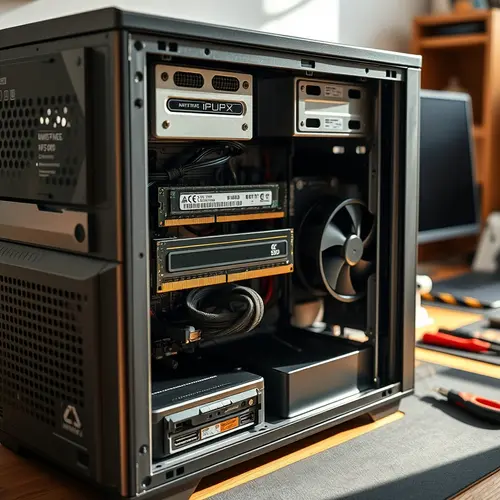
Memory constraints force your system into constant disk swapping. When physical RAM fills up, the operating system writes overflow data to virtual memory on your storage drive—orders of magnitude slower than actual RAM. Monitoring your RAM usage during typical workflows reveals the truth. If you consistently exceed 80% utilization, you’re bottlenecked. Adding RAM eliminates swap file dependency and allows more applications to remain memory-resident.How Much RAM You Actually Need
Basic productivity tasks run acceptably on 8GB. Content creation, development environments, and serious multitasking demand 16GB minimum. Virtual machines, video editing, and 3D rendering benefit from 32GB or more. The performance curve isn’t linear—jumping from 4GB to 8GB produces dramatic improvement, while 16GB to 32GB offers diminishing returns unless your workload specifically demands it.Speed Up Computer – Debunking the “More Programs = Faster Computer” Myth
Registry cleaners, optimization suites, and “PC booster” utilities promise miracles but often create new problems. These tools generate placebo effects through aggressive RAM flushing and process termination—techniques your operating system already handles more intelligently. Expert opinion: After analyzing hundreds of system optimization cases, the pattern is clear: manual, selective intervention outperforms automated “fix everything” tools. The Windows Task Manager and Resource Monitor provide all the diagnostic power you need without third-party overhead. Focus on understanding what’s consuming resources rather than installing another background process to “monitor” the first batch of background processes.Speed Up Computer – Update Drivers and Apply System Patches
Driver updates aren’t just about new features—they contain performance optimizations and memory leak fixes. Graphics drivers in particular receive regular updates that improve rendering efficiency and reduce CPU overhead. Outdated chipset drivers create communication inefficiencies between your processor and motherboard components. Storage controller drivers affect how efficiently data moves between your SSD and system memory.Strategic Updating Without Breaking Stability
Prioritize graphics, chipset, and storage controller drivers. Network and audio drivers should be updated only when experiencing specific issues. Always create a system restore point before driver updates to maintain rollback capability.Practical Methods to Speed Up Computer Performance
Beyond hardware upgrades, systematic software maintenance delivers measurable gains. These techniques work together synergistically:- Disable visual effects: Animations and transparency consume GPU cycles. Windows Performance Options lets you prioritize speed over aesthetics.
- Manage browser extensions: Each extension adds processing overhead and memory consumption. Audit ruthlessly and keep only essential tools.
- Schedule disk maintenance: Run built-in optimization tools weekly for SSDs, monthly defragmentation for HDDs.
- Clear temporary files: System temp folders accumulate gigabytes of orphaned data that slow file system operations.
- Adjust power settings: Balanced or High Performance modes prevent CPU throttling during demanding tasks.
- Scan for malware: Cryptominers and botnet agents consume resources silently. Regular scanning with reputable tools is non-negotiable.
Monitor Resource Usage to Identify Bottlenecks
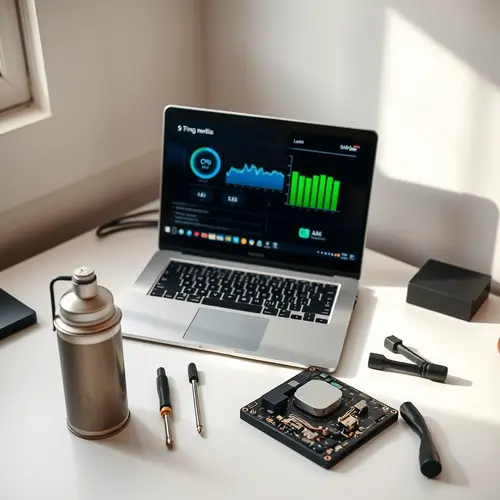
Effective optimization requires measurement. Task Manager’s Performance tab shows real-time CPU, memory, disk, and network utilization. Patterns reveal whether you’re CPU-bound, RAM-constrained, or disk-limited. When a single resource consistently maxes out while others idle, you’ve found your bottleneck. A CPU pegged at 100% while RAM sits at 40% tells you to address processing power first.Real-World Troubleshooting Scenario
Consider a machine that freezes during file operations. Resource Monitor shows disk queue lengths spiking to 50+ while disk utilization hovers near 100%. This pattern indicates either a failing drive or insufficient I/O capacity—not a CPU or RAM issue. The solution involves storage diagnostics and potential hardware replacement, not adding more memory.Advanced Techniques for Power Users
Registry tweaks can disable telemetry services and reduce background data collection. Editing the Windows services list allows you to stop non-essential system processes. Virtual memory optimization—manually setting page file size based on actual usage patterns—prevents dynamic resizing overhead. These methods require system knowledge and carry risk if applied incorrectly. Document changes and test incrementally rather than implementing multiple modifications simultaneously.When to Consider Professional Hardware Upgrades
Software optimization hits limits. If your processor predates the last two architecture generations, single-threaded performance becomes the ceiling. Thermal throttling from dust accumulation or degraded thermal paste creates invisible performance drains that cleaning and repasting resolve. Hardware diagnostic tools identify failing components before complete failure. SMART drive monitoring, memory testing utilities, and stress testing applications reveal whether your slowdown stems from degrading hardware rather than software inefficiency.Maintaining Long-Term Performance
Periodic maintenance prevents performance regression. Monthly audits of installed software, quarterly deep cleaning of temp files, and semi-annual driver updates create a sustainable performance baseline. The key principle: proactive intervention beats reactive troubleshooting. Catching resource bloat early prevents the cascading slowdowns that make systems feel unusable. Implementing these strategies to speed up computer systems delivers compound benefits. Each optimization removes friction points that accumulated over months of use. The result is a machine that responds instantly rather than fighting through layers of digital friction with every click.If the basics do not cut it, make your PC run smoother with the deeper tune-up checklist.
About the Author