pc run smoother
If your computer feels sluggish, freezes during basic tasks, or takes forever to boot up, you’re experiencing performance degradation that affects productivity and user experience. Learning how to make your pc run smoother involves understanding system resource management, identifying bottlenecks, and implementing strategic optimizations that restore responsiveness without expensive hardware upgrades.
Performance degradation happens gradually. Background processes accumulate, storage fills with temporary files, and software updates introduce resource-hungry features. According to Microsoft’s official documentation, the average Windows installation accumulates over 20GB of temporary and system cache files within six months of normal usage.
Understanding Why Your PC Run Smoother Efforts Matter
System performance directly impacts everything from application launch times to multitasking capabilities. When RAM gets saturated, your operating system relies on virtual memory, which uses your hard drive as overflow storage. This creates a massive speed penalty since even fast SSDs operate at a fraction of RAM speeds.
CPU throttling represents another hidden factor. When processors overheat due to dust accumulation or failing thermal paste, they automatically reduce clock speeds to prevent damage. This thermal throttling can cut performance by 30-50% without any visible warning.
Make Your PC Run Smoother – Clear Out Storage Bottlenecks
Storage space directly affects system performance through multiple mechanisms. Operating systems require free space for virtual memory, temporary files, and system updates. When your primary drive exceeds 90% capacity, read/write operations slow dramatically.
Remove Unnecessary Programs to Make PC Run Smoother
Most pre-built computers ship with bloatware that consumes resources without providing value. Navigate to your system’s application manager and systematically remove programs you don’t recognize or use. Pay special attention to trial software, manufacturer utilities, and duplicate programs.
Third-party uninstallers like Revo Uninstaller detect leftover registry entries and files that standard removal processes miss. These remnants accumulate over time and create system clutter that degrades performance.
Make Your PC Run Smoother – Deploy Disk Cleanup and Maintenance Tools
Windows includes built-in cleanup utilities that many users overlook. The Disk Cleanup tool removes temporary files, system cache, and download folders. Storage Sense automates this process by monitoring available space and removing unnecessary files on a schedule.
| File Type | Typical Size Range | Safe to Delete |
|---|---|---|
| Temporary Internet Files | 500MB – 5GB | Yes |
| Windows Update Cleanup | 1GB – 10GB | Yes |
| System Error Memory Dumps | 100MB – 2GB | Yes (after analyzing) |
| Recycle Bin Contents | Varies | After verification |
| Thumbnails Cache | 200MB – 1GB | Yes (regenerates) |
Make Your PC Run Smoother – Optimize Startup and Background Processes
Every program set to launch at startup extends boot time and consumes RAM. Task Manager’s Startup tab reveals which applications initialize with Windows and their performance impact rating.
Disable non-essential startup programs. Cloud storage sync clients, communication tools, and update checkers don’t need to launch automatically. You can manually start them when needed instead of having them consume resources continuously.
Manage Services to Help Your PC Run Smoother
Windows services operate in the background regardless of visible applications. Many services serve specialized functions that typical users never utilize. The Services management console allows you to disable or set services to manual startup mode.
Exercise caution when modifying services. Disabling critical system services causes instability or functionality loss. Focus on third-party services from software you rarely use or vendor-specific utilities that provide minimal benefit.
Make Your PC Run Smoother – Upgrade RAM and Storage Hardware
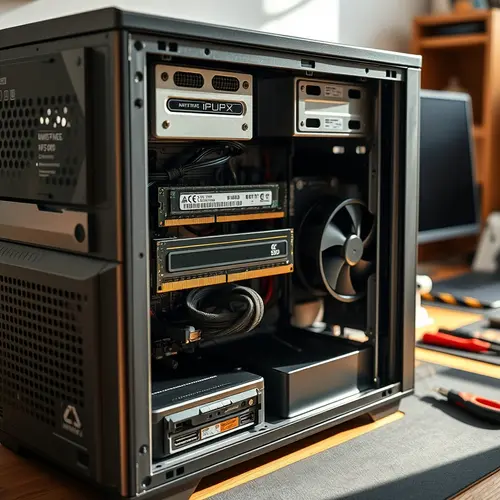
Software optimization has limits. If your system regularly maxes out available RAM or uses a traditional hard disk drive, hardware upgrades deliver transformative performance gains.
RAM upgrades provide immediate benefits for multitasking and demanding applications. Adding memory allows your system to keep more data readily accessible instead of constantly swapping to virtual memory. According to independent benchmarks from PassMark Software, doubling RAM from 8GB to 16GB reduces application load times by an average of 35% in memory-intensive workloads.
Make Your PC Run Smoother – SSD Migration Strategy
Solid-state drives eliminate mechanical latency present in traditional hard drives. NVMe SSDs using PCIe interfaces deliver sequential read speeds exceeding 3,500MB/s compared to 120MB/s for standard hard drives.
Clone your existing system drive to an SSD using migration software like Macrium Reflect or Clonezilla. This preserves your operating system, programs, and settings while upgrading the underlying storage medium. Boot times drop from minutes to seconds, and application launches become nearly instantaneous.
Make Your PC Run Smoother – Maintain System Health Through Regular Updates
Security patches and driver updates address performance issues and vulnerability exploits. Graphics drivers particularly impact system responsiveness since GPU acceleration affects everything from video playback to browser rendering.
Check for driver updates directly from hardware manufacturer websites rather than relying on Windows Update alone. NVIDIA, AMD, and Intel release optimized drivers that Windows Update doesn’t always include immediately.
BIOS and Firmware Updates
Motherboard firmware updates improve hardware compatibility and system stability. Manufacturers release BIOS updates that optimize memory timings, enhance power management, and fix bugs affecting performance.
Access BIOS update utilities through your motherboard manufacturer’s support page. Always review release notes to understand what each update addresses before applying firmware changes.
Make Your PC Run Smoother – Combat Malware and System Infections
Malicious software consumes resources for cryptocurrency mining, botnet operations, or data exfiltration. These processes run hidden from normal task managers and create persistent performance drains.
Run comprehensive scans using Windows Defender or reputable third-party security software like Malwarebytes. Bootable rescue disks detect rootkits and advanced persistent threats that hide from standard scans.
Expert Opinion: The Disk Defragmentation Myth
A widespread misconception claims that defragmenting SSDs improves performance. This outdated advice applies only to traditional hard drives with mechanical read/write heads.
SSDs access data electronically without physical movement, making fragmentation irrelevant. Defragmenting an SSD wastes write cycles and shortens drive lifespan without any performance benefit. Modern operating systems automatically optimize SSDs through TRIM commands that handle data management at the controller level.
Adjust Visual Effects and Animations
Windows applies transparency effects, shadows, and animations that consume GPU and CPU resources. These visual enhancements provide aesthetic appeal but reduce available performance for productive tasks.
Access Performance Options through System Properties and select “Adjust for best performance.” This disables animations, shadows, and transparency while maintaining functionality. Alternatively, selectively disable specific effects while keeping features you value.
Power Plan Configuration for PC Run Smoother Performance
Power plans balance energy consumption with performance. The default “Balanced” plan prioritizes energy efficiency over raw speed by reducing processor clock speeds during light workloads.
Switch to “High Performance” mode to prevent CPU throttling and maintain maximum clock speeds. This increases power consumption but eliminates performance compromises during demanding tasks.
Monitor System Temperatures
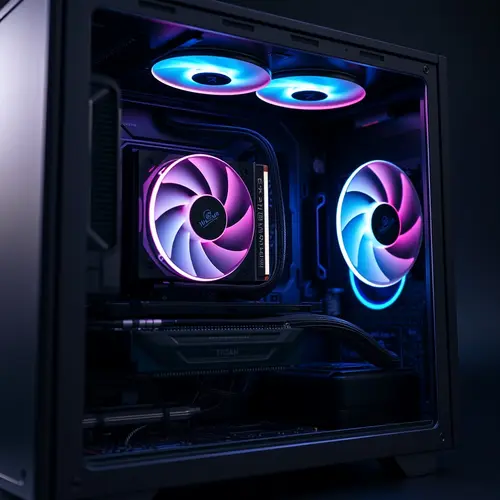
Excessive heat triggers thermal throttling that dramatically reduces performance. Dust accumulation blocks airflow, while degraded thermal paste loses heat transfer efficiency.
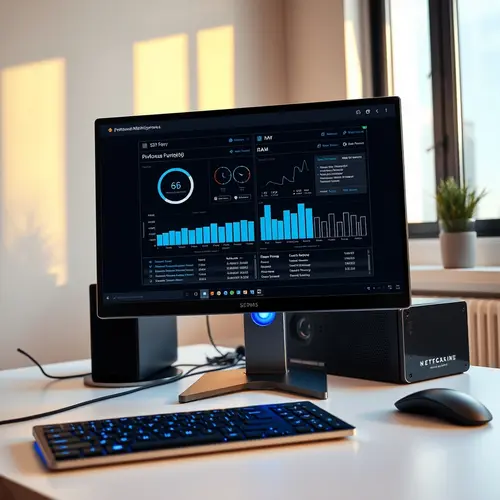
Use monitoring tools like HWMonitor or Core Temp to track component temperatures. CPUs should remain below 80°C under load, while GPUs perform optimally under 85°C. Temperatures consistently exceeding these thresholds indicate cooling problems requiring intervention.
- Clean dust from intake vents and exhaust fans using compressed air
- Verify all case fans operate correctly and maintain proper airflow direction
- Reapply thermal paste between CPU and heatsink if temperatures remain elevated
- Ensure adequate case ventilation with proper intake and exhaust balance
- Consider aftermarket coolers for processors running hot despite proper maintenance
Database and Registry Optimization
Registry fragmentation occurs as programs install and uninstall, leaving orphaned entries that bloat the database. While registry cleaners promise dramatic improvements, they carry risks of removing critical entries that cause system instability.
Use registry cleaners conservatively and only from established developers. Always create system restore points before making registry modifications so you can revert changes if problems emerge.
Practical Troubleshooting Scenario
Consider a user experiencing 5-minute boot times and frequent application freezes. Task Manager reveals 95% RAM utilization at idle with multiple Chrome processes consuming 4GB. The startup tab shows 15 programs set to auto-launch, including cloud sync clients, communication tools, and system monitors.
The solution involves disabling unnecessary startup programs, upgrading from 8GB to 16GB RAM, and migrating to an SSD. Post-optimization, boot time drops to 15 seconds, idle RAM usage falls to 35%, and application launches become instantaneous. This demonstrates how systematic optimization targeting specific bottlenecks delivers compound performance improvements.
Taking steps to make your pc run smoother requires systematic evaluation of bottlenecks rather than random optimizations. Focus on high-impact changes like storage upgrades, startup optimization, and thermal management before pursuing marginal adjustments. Regular maintenance prevents gradual degradation and maintains optimal performance over your system’s operational lifetime.
About the Author