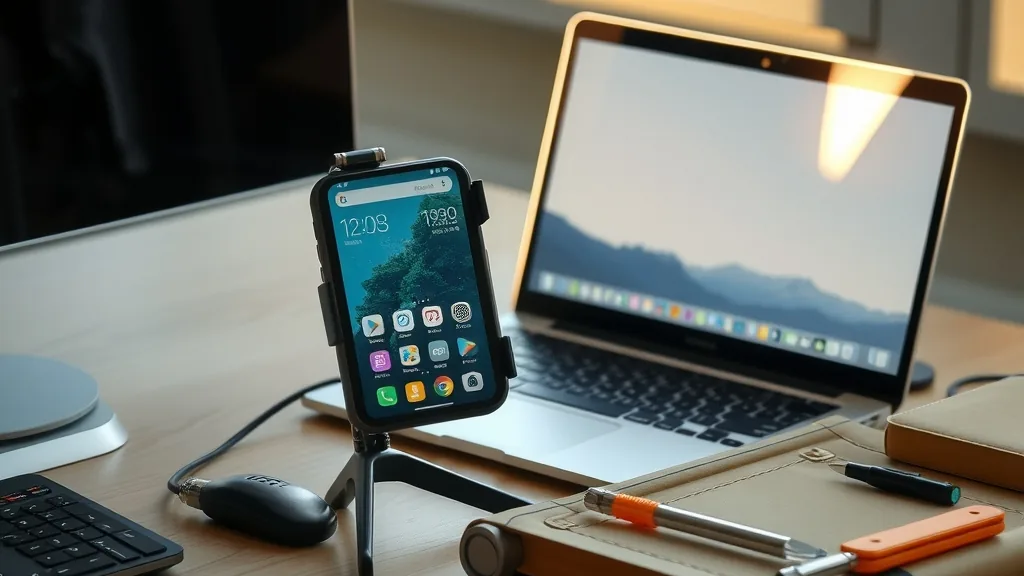
Android remote support lets a technician see and sometimes control a phone or tablet without being in the same room. For a small business, that usually means fixing a field device, walking an employee through an app, or setting up a new handset for a remote hire. It is useful, but it is also the kind of access that needs rules before the first session.
A supported Android device needs explicit consent, a session code, and a clear end to the session.
This guide explains how Android remote support works, which tool categories fit different jobs, how to set it up step by step, and what to budget. It avoids vendor hype and focuses on the decisions a business owner or office manager actually has to make.
What Android remote support means in practice
There are three levels of access. Screen sharing lets the technician see what the user sees. Remote control adds the ability to tap, swipe, and type. Device management goes further, pushing settings, apps, and security policies to many phones at once.
Most support calls only need screen sharing plus a voice call. Remote control is valuable for older users or complex app setup. Full device management is a different purchase, usually priced per device per month, and it is worth it only when you have a fleet of company phones.
When a small business actually needs it
Remote support pays for itself when someone is stuck away from the office, when a new hire needs a phone configured, or when a field team depends on one app. It also helps during onboarding, because a technician can walk a new employee through email, calendar, and security settings in one session.
It is not the right tool for a lost or stolen phone. In that case, use the built-in device finder or your management console to lock or wipe the device. Remote support assumes the person holding the phone has agreed to the session.
How Android remote support works
Screen sharing and accessibility permissions
Android does not allow silent remote control by default. Support apps ask the user to grant screen capture or accessibility permissions, then display a consent prompt. The user must approve the session, and a persistent notification usually shows that sharing is active.
Attended versus unattended sessions
Attended support requires someone on the device to accept. Unattended access is possible on managed devices with device-owner permissions, but it should be limited to company-owned hardware and logged carefully. Never enable unattended access on a personal phone without a written policy.
Mobile device management
An MDM platform is the cleaner option for company phones. It can enforce screen locks, install required apps, and remove company data without touching personal photos. Support then becomes a management task rather than a one-off remote session.
Step-by-step setup for a small team
Write a one-page policy: who can request support, who can approve it, what the technician may access, and how sessions are logged.
Choose one support tool and one MDM, not three. Overlap creates confusion and extra cost.
Create technician accounts with named users, not a shared login. Enable multi-factor authentication.
Test the flow on a spare phone: request, consent, screen share, control, end session, and confirm the notification disappears.
Document the exact steps employees see, including the session code and the consent prompt.
Review sessions monthly. Look for after-hours access, failed consent attempts, and devices that should not be enrolled.
Keep a simple log with date, device, employee, technician, reason, and duration. A spreadsheet is enough at ten devices. Move to the tool’s audit log once the team grows.
Security rules to set before the first session
Consent must be explicit and visible. Use one-time session codes, short session limits, and automatic disconnects after inactivity. Require the employee to end the session, and confirm that screen sharing stops when they do.
Limit what the technician can see. Close banking, health, and personal apps before sharing, or use a work profile that separates company apps from personal data. On personal phones, prefer guided instructions over remote control.
Protect the technician side too. Company laptops used for support should have disk encryption, screen locks, and a clean browser profile. Record who accessed which device, and review access when someone leaves the company.
Finally, train employees to recognize fake support calls. A real technician will not ask for a password, a bank code, or a gift card. Teach staff to hang up and call the internal number instead.
Costs and what changes at scale
Small support tools commonly start free for one or two technicians and move to a per-technician subscription, often $20 to $60 per month. MDM pricing is usually per device per month, with volume discounts. A ten-device deployment can stay under $100 per month; a hundred-device fleet usually needs a formal quote.
The hidden cost is time. Expect a few hours to write the policy, test the flow, and train the first group. After that, most sessions take five to fifteen minutes, which is far cheaper than sending someone to a site.
Free tools versus paid tools
Free tiers are useful for testing the workflow, but they usually limit session length, concurrent technicians, or file transfer. That is acceptable for a two-person office that needs help twice a month. It becomes a problem when a support call is cut off in the middle of a payroll setup or when two technicians need to help different people at the same time.
Paid plans add named accounts, audit logs, and longer sessions. Those features matter more than screen resolution. A clear log of who accessed which phone, and when, is the difference between a support process and an unaccountable one. If you handle client data, look for a vendor that offers a data processing agreement and regional hosting options.
Before paying, run a two-week pilot with the free tier on three devices. Track how often you hit a limit and whether the consent flow confuses employees. If the limits never appear, stay free and revisit the decision when the team grows.
Troubleshooting checklist
If screen sharing fails, check that the app has screen capture permission and that battery optimization is not stopping it. If taps do not register, confirm accessibility service access and whether the phone is running a vendor skin that blocks input injection. If audio drops, switch from speakerphone to a headset and test on Wi-Fi. If the session will not end, revoke the app permission and restart the phone.
Can I control an Android phone remotely without the user’s permission?
No, not on a standard consumer device. Android requires the user to grant screen capture or accessibility access, and a visible consent prompt or notification should appear. Unattended access belongs only on managed company hardware with a written policy.
Do I need an MDM for Android remote support?
Not for occasional one-to-one help. An MDM makes sense once you manage several company phones, need to enforce security settings, or want to remove company data without wiping personal photos.
Is Android remote support secure?
It can be, if you use named technician accounts, multi-factor authentication, one-time session codes, short session limits, and audit logs. The weak point is usually a shared login or an employee who approves a caller without verifying them.
What does Android remote support cost for a small team?
Support tools often run $20 to $60 per technician per month. MDM is priced per device, so a ten-device fleet can stay under $100 per month while larger fleets need a quote.
David Brown covers computers and IT support since 2020, testing 70+ devices, tools, and fix methods on reliability, cost, and speed to help home users and small offices choose with confidence.